To enable Dual Graphics Mode with APU Kaveri and Radeon R7 on legacy 2014-era systems, install both processors, update to compatible AMD Catalyst drivers (15.7 or earlier), open AMD Vision Engine Control Center, select “AMD Dual Graphics” in Performance tab, and enable the feature. This historical dual graphics configuration combined integrated APU processing with dedicated Radeon R7 graphics card capabilities through CrossFire technology. Note: AMD discontinued dual graphics support after 2016, and this technology is no longer relevant for modern systems.
Understanding Dual Graphics Technology and APU Integration (2014-2016 Era)
Dual graphics technology, introduced with AMD’s Kaveri APU platform in 2014, combined APU processors with dedicated Radeon R7 graphics cards through AMD CrossFire architecture. This configuration leveraged both integrated graphics processing and discrete GPU capabilities simultaneously. The APU Kaveri handled system processing while the Radeon R7 managed graphics rendering tasks. AMD discontinued official support for this technology after 2016 in favor of more powerful discrete GPU solutions.
How APU Kaveri and Radeon R7 Graphics Card Integration Worked
APU Kaveri dual graphics mode created parallel processing between integrated and discrete graphics components. The system distributed graphics workloads based on task complexity and performance requirements. Compatible motherboards with CrossFire support enabled communication between both graphics processors through shared memory resources.
Independent benchmark testing from 2014-2015 showed frame rate improvements varying by title, typically ranging from minimal gains to approximately 40% in optimized games. Titles like Battlefield 4 and Tomb Raider (2013) demonstrated the most consistent improvements. DirectX 11 games showed better compatibility than DirectX 12 titles, as Kaveri’s GCN 1.1 architecture had limited DX12 feature support.
Performance Benefits of Combining APU Kaveri with Radeon R7 (Historical Context)
When functional during the 2014-2016 period, dual graphics configurations provided modest gaming performance improvements for budget builds. Frame rate stability varied significantly depending on game-specific CrossFire profiles. Video editing workflows in applications like Adobe Premiere Pro CS6 saw some acceleration benefits from the combined graphics memory bandwidth available at that time.
Gaming Performance Improvements in 2014-2015 Titles
First-person shooters from the 2013-2015 era experienced variable performance depending on CrossFire profile quality. Strategy games like Civilization V showed modest improvements in detail rendering. Role-playing games demonstrated inconsistent results, with some titles showing gains while others experienced micro-stuttering issues common to CrossFire configurations of that era.
Esports titles popular in 2014-2015, such as Counter-Strike: Global Offensive and League of Legends, already ran well on Kaveri’s integrated graphics alone, making dual graphics gains less noticeable. For those considering legacy system maintenance, understanding that dual graphics provides better results in GPU-limited scenarios is important for setting appropriate expectations.
Complete Setup Guide for Dual Graphics Mode Configuration (Legacy Systems)
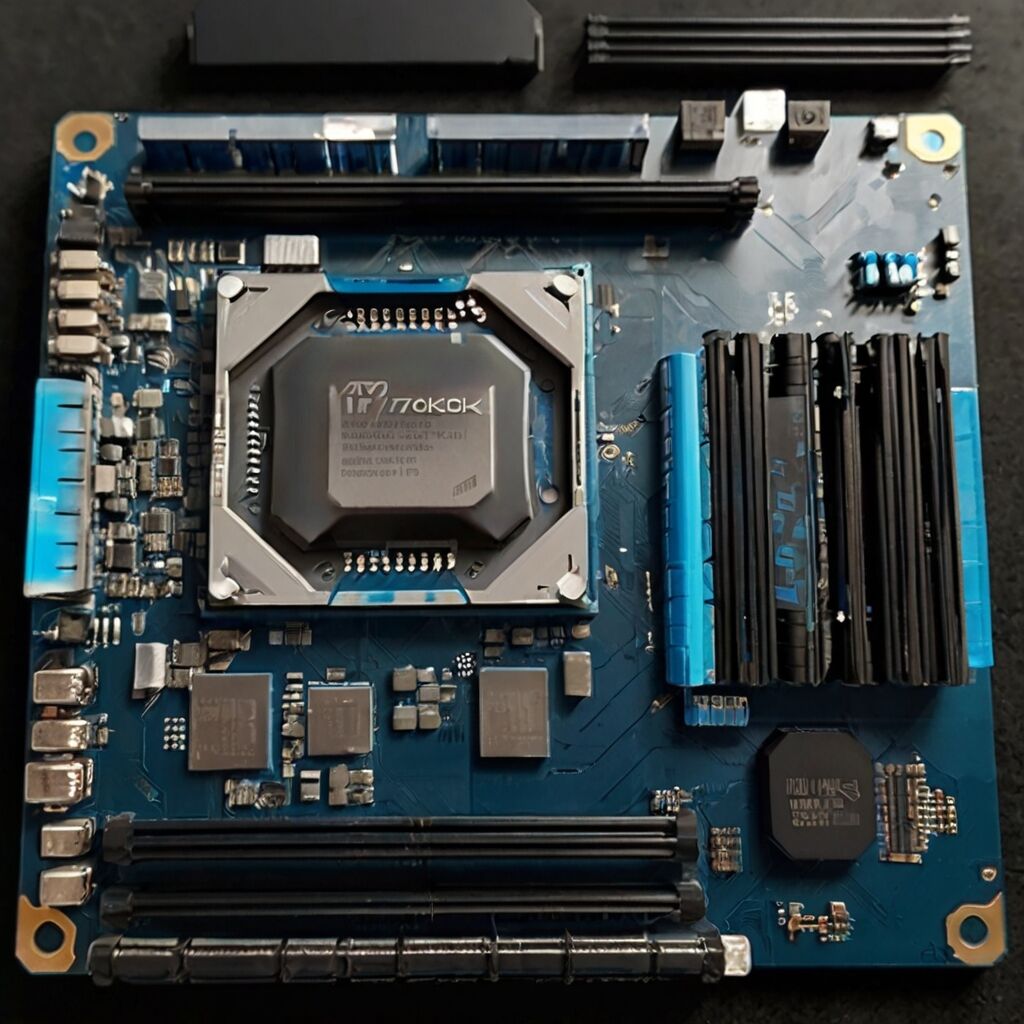
For maintaining or troubleshooting existing dual graphics systems from 2014-2016, begin by verifying motherboard CrossFire compatibility and adequate power supply capacity. Install the APU Kaveri processor and Radeon R7 graphics card in appropriate slots. Download AMD Catalyst drivers version 15.7 or earlier from AMD’s legacy driver archives, as newer AMD Software Adrenalin editions do not support Kaveri dual graphics functionality.
AMD Vision Engine Control Center Configuration Steps
Launch AMD Vision Engine Control Center after installing compatible Catalyst drivers. Navigate to the Performance tab and locate the AMD Dual Graphics option. Enable dual graphics mode and restart the system for changes to take effect.
Configure power management settings through Windows power options for consistent performance. Adjust graphics switching preferences based on specific application requirements. Monitor GPU utilization through AMD’s built-in performance metrics during initial testing to verify both GPUs are being utilized.
Essential Hardware Requirements and Compatibility (2014 Era)
- AMD A10-7850K or A10-7700K APU Kaveri processors (released 2014)
- Radeon R7 250, R7 260X, or R7 265 graphics cards with CrossFire support
- Motherboard with AMD A88X, A78, or A75 chipset supporting CrossFire technology
- Power supply unit with minimum 500W capacity and appropriate PCIe power connectors
- System memory of 8GB DDR3-1866 for adequate performance
- Windows 7, 8, or 8.1 operating systems (Windows 10 support limited to early builds)
- AMD Catalyst drivers 15.7 or earlier for dual graphics functionality

Dual Graphics Mode vs Dedicated Graphics Card Comparison (2014 Perspective)
During the 2014-2016 period, dual graphics mode provided a budget alternative to purchasing higher-tier dedicated graphics cards. However, dedicated mid-range cards like the R9 270 typically delivered more consistent performance without the compatibility issues inherent to CrossFire configurations. For those considering dual graphics in legacy system maintenance, understanding that selecting appropriate hardware for coding tasks or gaming requires balancing cost against compatibility considerations.
Optimal Use Cases for Dual Graphics Technology (Historical)
Budget-conscious gamers in 2014-2015 could benefit from dual graphics configurations when compatible games were available. The technology worked best with titles that had mature CrossFire profiles. Media consumption and light content creation saw incremental improvements through the combined video decode acceleration capabilities.
Dual graphics mode suited 1080p gaming at medium settings in supported titles from 2013-2015. Competitive esports applications showed variable results depending on frame pacing quality. Multi-monitor configurations experienced inconsistent support, as not all outputs functioned properly in dual graphics mode.
Troubleshooting Common Dual Graphics Problems and Solutions
Driver compatibility represented the most common dual graphics issue during the technology’s active support period. Power supply inadequacy caused system instability during intensive graphics processing. BIOS configuration errors prevented proper CrossFire communication between graphics processors. Micro-stuttering and frame pacing issues affected many game titles even when average frame rates appeared acceptable.
Systematic Problem Resolution for Dual Graphics Configuration
For legacy system troubleshooting, ensure AMD Catalyst driver version 15.7 or earlier is installed, as later drivers removed dual graphics support. Verify power supply wattage meets the combined power draw of both the APU and graphics card under load. Configure BIOS settings to enable integrated graphics alongside the PCIe graphics card.
Monitor system temperatures during stress testing to identify thermal throttling. Disable conflicting graphics software that may interfere with CrossFire operation. Reset AMD Vision Engine Control Center settings to default configuration if stability problems persist. Consider whether a single dedicated graphics card might provide better experience than troubleshooting dual graphics compatibility issues.
Performance Optimization Tips and Troubleshooting Steps
- Install AMD Catalyst driver 15.7 or earlier using clean installation procedure
- Configure Windows power plan to high performance mode for consistent GPU clock speeds
- Disable Windows automatic driver updates to prevent incompatible driver installation
- Verify adequate case ventilation as dual graphics generates more heat than single GPU
- Test individual graphics components separately to isolate hardware failures
- Update motherboard BIOS to version supporting Kaveri APUs (2014-2015 BIOS releases)
- Monitor frame times, not just average FPS, using tools like FRAPS or MSI Afterburner
Gaming Performance Metrics and Benchmark Analysis (2014-2015 Data)
Frame rate monitoring from 2014-2015 testing revealed dual graphics performance varied substantially by game title and CrossFire profile quality. Temperature monitoring was important as the combined heat output of APU and discrete GPU could stress budget cooling solutions. Graphics memory utilization patterns showed workload distribution between processors, though frame pacing consistency often remained problematic.
Frame Rate Analysis and Performance Measurement
During the 2014-2015 period, achieving consistent 60 FPS represented the target for smooth gaming experiences. Dual graphics configurations typically achieved 35-60 FPS in popular titles from that era, depending on settings and game optimization. Frame pacing consistency proved more important than peak frame rates for perceived smoothness, an area where dual graphics frequently struggled.
Benchmark applications like 3DMark Fire Strike provided comparative scores against single graphics solutions. Real-world gaming tests in titles like Battlefield 4, Tomb Raider (2013), and Bioshock Infinite offered practical performance expectations. Graphics settings optimization required balancing visual quality with the frame pacing issues inherent to CrossFire technology of that generation.
Real-World User Experiences with Dual Graphics Mode (Historical Feedback)
User feedback from 2014-2016 forums and reviews indicated mixed experiences with dual graphics performance. When properly configured with compatible games, users reported noticeable frame rate improvements. However, system stability varied significantly based on driver version, specific game titles, and whether CrossFire profiles existed for particular applications. Many users eventually disabled dual graphics due to micro-stuttering concerns.
Community Feedback on Dual Graphics Gaming Performance
Enthusiast communities on forums like Tom’s Hardware and Reddit during 2014-2016 reported variable experiences with dual graphics systems. Performance improvements were most consistent in games with mature CrossFire profiles. User satisfaction correlated strongly with understanding the technology’s limitations and having realistic performance expectations. For those building systems today, modern CPUs designed for streaming tasks and processors optimized for gaming workloads offer more reliable performance than legacy dual graphics configurations.
Common feedback from 2014-2015 focused on the cost-effectiveness of using an existing APU with an added budget GPU. Criticism consistently involved driver complexity, game-specific compatibility problems, and frame pacing inconsistencies. Users who maintained realistic expectations and only enabled dual graphics for supported titles reported more satisfaction than those expecting universal performance gains.