
- How do I clone my operating system to another SSD?
- What software is recommended for OS migration to an SSD?
- Are there any compatibility issues when migrating an OS to a new SSD?
- What is the process of migrating Windows 10 to a new SSD?
- Can you migrate an OS from an HDD to an SSD?
- What happens to the old SSD after OS migration?
- Do I need to reinstall software after migrating my OS?
- How long does it typically take to migrate an OS to a new SSD?
- Is it possible to migrate just specific files or applications instead of the entire OS?
- Does migrating an OS void any warranties?
Before migrating your operating system to a new SSD, back up all data, especially OS data, to prevent loss. Use reputable backup software or your operating system’s built-in feature.
Connect the new SSD to your computer either as an external storage device or integrate it internally for the migration process. When the system recognizes the new SSD, initiate a direct transfer of the OS from the old disk using cloning software.
How do I clone my operating system to another SSD?

For cloning your OS to another SSD, ensure both drives are properly installed on your PC and choose cloning software that can make an exact copy of your current OS, files, and settings onto the new SSD.
To start cloning, select the current hard drive as the source and the new SSD as the target in the cloning software. Verify the drives chosen as the process will overwrite all data on the new drive, and then proceed with the transfer of the OS.
What software is recommended for OS migration to an SSD?
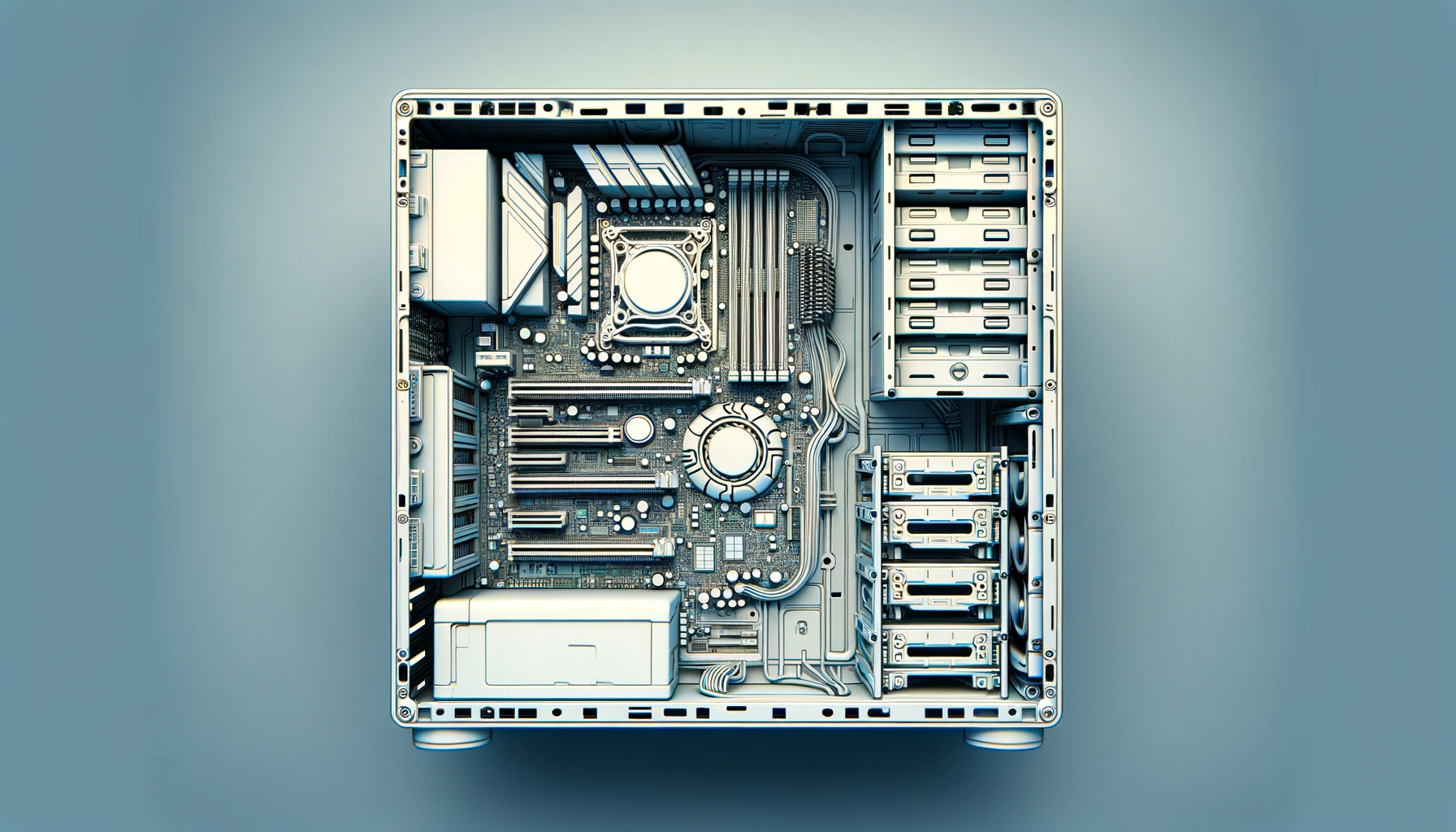
Recommended software for OS migration includes the user-friendly Acronis True Image and the robust Clonezilla, known for its reliable drive cloning and restoration capabilities.
Macrium Reflect is a top tool with features for backup, disk imaging, and cloning. EaseUS Todo Backup is excellent for OS migration to an SSD, known for its user-friendly interface and robust feature set. Personal preferences determine the best software for the task.
Are there any compatibility issues when migrating an OS to a new SSD?

Migrating an OS to a new SSD usually has minimal compatibility issues thanks to modern systems. However, hardware or driver incompatibilities might arise. Boot-related problems can occur when moving from a traditional HDD to an SSD due to IDE and AHCI mode differences.
Cloning an OS from a larger drive to a smaller SSD can pose space issues. Cleanup may be necessary to accommodate all content. Ensure compatibility if switching to a different connection like NVMe before migration.
- Back up all important files and data to ensure no valuable information is lost.
- Select a reliable and efficient software designed for OS migration, such as Acronis True Image or EaseUS Todo Backup.
- Connect the new SSD to your computer using a USB-to-SATA adapter or directly installing it into an available slot.
- Launch the migration software and select the source SSD or HDD from which you want to migrate the OS.
- Choose the destination SSD where you want to transfer your operating system.
- Adjust the partition sizing based on your preferences or allow the software to automatically optimize the partition on the new SSD.
- Initiate the migration process and be patient until it completes. This may take some time depending on the size of your OS and the speed of your hardware.
What is the process of migrating Windows 10 to a new SSD?
Transferring Windows 10 to a new SSD involves creating a backup and then using a tool like Acronis True Image for a seamless process.
After installing the new SSD, clone the system using a tool like EaseUS Todo Backup to ensure a smooth transfer of data, including the operating system. Boot from the new SSD for the change to take effect.
Can you migrate an OS from an HDD to an SSD?
Migrating an operating system from an HDD to an SSD can significantly boost system performance. You can achieve this using the Macrium Reflect cloning software.
The migration process involves backing up your data, cloning the HDD to the new SSD, and booting from the SSD. Properly set BIOS settings to boot from the new drive for optimal performance.
What happens to the old SSD after OS migration?
After migrating the OS, repurpose your old SSD for additional storage by formatting it. Samsung Magician software facilitates managing SSDs post-migration.
Consider selling or giving away the old SSD after securely wiping off data using reputable tools like CCleaner to ensure data security. An old SSD can serve other purposes once replaced by a new SSD.
- Significantly improves your computer’s overall performance and speed.
- Reduces boot-up and program loading times, allowing for a faster and more efficient workflow.
- Enhances system responsiveness, minimizing lag or delays during multitasking.
- Increases the lifespan of your computer as SSDs are more durable and less prone to physical damage.
- Offers smoother and seamless experience when running resource-intensive applications, such as video editing or gaming.
- Delivers lower power consumption, which extends battery life for laptops and reduces energy costs for desktops.
- Provides enhanced data security and reliability due to the lack of moving parts in SSDs.
Do I need to reinstall software after migrating my OS?
Migrating your OS to a new SSD typically does not require reinstalling software since the process captures all installed software and applications in a snapshot of your system.
Most times, software does not need to be reinstalled after moving your OS to a new SSD, maintaining your software and settings. However, some software might need reactivation post-migration.
How long does it typically take to migrate an OS to a new SSD?
Migrating an OS to a new SSD typically takes between one to two hours, depending on factors like data size and drive speeds.
Factors such as source drive fullness and computer specifications can impact migration time, so allocate enough time for unforeseen circumstances.
Is it possible to migrate just specific files or applications instead of the entire OS?
You can migrate specific files or applications instead of the whole OS, with specialized software offering features for selective migration.
Selective migration may be more complex, but ensuring applications function properly on the new SSD is crucial.
Does migrating an OS void any warranties?
Migrating your OS to a new SSD doesn’t usually affect your computer’s warranty coverage, which typically pertains to hardware faults.
It’s wise to review your warranty paperwork or contact the manufacturer to confirm that migrating your operating system maintains warranty coverage.