
Table of Contents
- What steps should I follow to update my GPU drivers?
- How do I identify the model of my graphics card?
- Where can I download the latest graphics card drivers?
- Should I uninstall old graphics card drivers before updating?
- What’s the impact of outdated drivers on graphics performance?
- Can updated drivers fix graphical glitches?
- How often should I update my graphics card drivers?
- Are third-party driver update tools reliable?
- What is the best way to rollback a driver update?
- Can I update graphics card drivers without an internet connection?
Updating graphics card drivers is a crucial task for maintaining optimal performance of your system. Not only does it enhance the functionality of your video cards, but it also improves its compatibility with different software applications. In essence, updating graphics card drivers involves downloading and installing the latest version of the drivers from the manufacturer’s site.
One quick way to update graphics card drivers is to use the device manager on your PC. Alternatively, you can rely on consumer electronics specialists like ExtremeSpec for genuine drivers that will boost your system’s performance. By utilizing their support, you ensure that your computer can handle the requirements of the latest PC games and graphics-intensive applications.
What steps should I follow to update my GPU drivers?
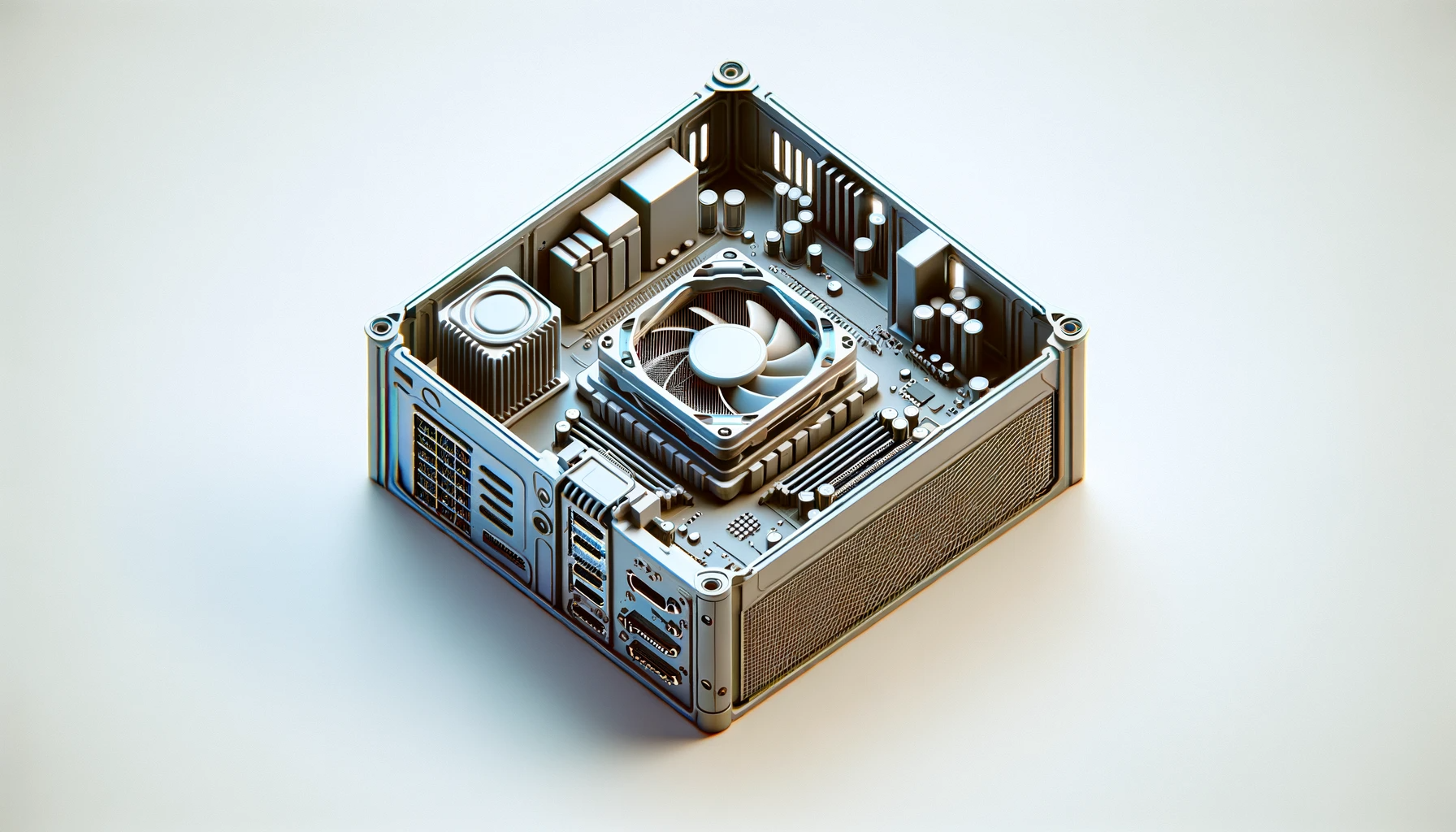
Having a step-by-step procedure for updating your GPU drivers is essential in optimizing the performance of your visual displays. Here’s a quick guide to help you through this process. Firstly, open your device management window and locate the graphics card under the ‘Display adapters’ list.
Once you’ve identified your graphics card, right-click it to reveal an option for updating drivers. Select this option, and on the next window, choose ‘automatically search for updated driver software’. The system will then proceed to update your GPU drivers, assuming an internet connection is available.
How do I identify the model of my graphics card?

Identifying the model of your graphics card is an important step before you can successfully update your drivers. This process only requires you to access the device manager on your computer. First, you need to right-click on the ‘My Computer’ icon and then select ‘Properties’.
From there, choose ‘Device Manager’ and finally ‘Display Adapters’. Under ‘Display Adapters’, the make and model of your graphics card will be displayed. Having this piece of information is crucial when downloading the specific driver updates for your GPU.
Where can I download the latest graphics card drivers?

Downloading the latest graphics card drivers is an easy process once you have identified the make and model of your GPU. These drivers can usually be found on the manufacturer’s official site. For example, if you’ve got an NVIDIA card, you should go to NVIDIA’s site for the latest drivers.
If you can’t locate the correct drivers on the manufacturer’s site, reputable tech sites often carry them as well. Always ensure that you’re downloading drivers from a trusted and verified source to avoid the risk of harmful software or incorrect drivers.
- 1. Automatic Updates: Many graphics card manufacturers offer software that automatically updates the drivers for you.
- 2. Manual Updates: You can visit the graphics card manufacturer’s website and download the latest drivers for your specific model.
- 3. Windows Update: Windows operating system provides updates for various hardware components, including graphics card drivers.
- 4. Device Manager: You can update graphics card drivers through the Device Manager, which allows you to browse and install the latest drivers.
- 5. Manufacturer’s Support: Some graphics card manufacturers have dedicated support forums or helplines that can guide you through the updating process.
- 6. Third-Party Software: There are software programs available that can scan your system and automatically update your graphics card drivers.
- 7. Use Driver Updater Tools: Certain driver updater tools are designed specifically to identify and update outdated graphics card drivers.
Should I uninstall old graphics card drivers before updating?
When seeking to understand “how to update graphics card drivers”, one critical consideration often arises: should old ones be removed first? In most instances, it’s advisable to uninstall old graphics card drivers before commencing an update. This precaution can minimize potential conflicts between the old and new drivers that may cause performance issues or system instability.
The process of updating graphics card drivers often includes automatic removal of the old ones. For example, brands like NVIDIA and AMD usually have this feature built into their software. However, to ensure a smooth transition and no leftover files, it still beneficial to manually uninstall the old drivers before updating.
What’s the impact of outdated drivers on graphics performance?
Now, let’s delve into the consequences of outdated drivers on graphics performance. Prolonged use of outdated drivers can notably deteriorate your machine’s graphical performance. This degradation can result in slower rendering speeds, reduced video quality, and diminished gaming experience.
Furthermore, outdated drivers might leave you unable to leverage the full potential of your graphics hardware. Modern graphics applications and games demand updated drivers to perform optimally. Thus, learning the process of how to update your graphics card drivers can significantly boost your multimedia experience, whether it’s browsing the Adobe Photoshop gallery or playing the latest AAA games.
Can updated drivers fix graphical glitches?
Finally, let’s address another common question: can updated drivers rectify graphical anomalies? The answer is yes. Many graphical glitches, such as screen flickering, pixelation, and texture rendering problems, can often be resolved by simply updating your graphics card drivers.
These glitches can occur when drivers are incompatible with recent software updates or when hardware isn’t working harmoniously with the rest of the system. In such scenarios, finding and installing the latest graphics card driver updates can serve as a viable solution, restoring the system’s graphical prowess and eliminating frustrating visual anomalies.
- 1. Enhanced Performance: Updating drivers ensures that your graphics card can deliver optimal performance, maximizing your overall gaming or graphics experience.
- 2. Compatibility: Updated drivers often provide increased compatibility with the latest software and games, minimizing the risk of encountering compatibility issues.
- 3. Bug Fixes: Driver updates frequently come with bug fixes, resolving issues or glitches that may occur with older driver versions.
- 4. Security Patches: Updating drivers helps protect your system from potential security vulnerabilities by delivering crucial security patches.
- 5. New Features: Sometimes, driver updates introduce new features and functionality, providing additional options or improvements in graphics rendering.
- 6. Stability: Outdated drivers can cause system crashes or instability. Regular updates help maintain the stability and reliability of your graphics card.
- 7. Support for Latest Technologies: Updated graphics card drivers often offer support for the latest technologies, such as ray tracing or virtual reality.
How often should I update my graphics card drivers?
Finding the balance in updating graphics card drivers can often be a point of confusion. Fundamentally, graphics card drivers should be updated whenever a new version is released by the manufacturer. The frequency can vary, but you’ll typically update your graphics card drivers every couple of months.
Consistently updating your graphics card drivers ensures optimal functioning of your system. That’s because these updates often include fixes for potential bugs and improvements in performance. Therefore, updating your graphics card drivers whenever a new release comes out is a proactive way to prevent system problems.
Are third-party driver update tools reliable?
In certain situations, using third-party driver update tools might feel like a practical way to manage driver updates efficiently. However, the reliability of these tools varies widely, and many experts caution against their use. Some tools may not be updated regularly and could miss out on the latest graphics card drivers.
Moreover, some third-party driver update tools may unintentionally introduce malware to your system. There’s also a risk of incompatible drivers being installed, causing your system to malfunction. To guarantee safety and reliability, directly updating your graphics card drivers from the manufacturer’s official website or utility is usually the best choice.
What is the best way to rollback a driver update?
The process of rolling back a driver update is not as complex as it might initially seem. The best and most straightforward way to rollback a driver update is through the Device Manager on your operating system. From there, choose “Roll Back Driver” under the driver’s properties tab and follow the prompted steps.
Rolling back a driver update can help if the updated driver is causing problems for your system. This step reinstalls the previous version of the graphics card driver and can resolve potential issues. However, make sure to always verify the source and compatibility of drivers before a rollback to avoid further complications.
Can I update graphics card drivers without an internet connection?
While it’s more common and easier to update graphics card drivers with an active internet connection, there still are alternatives if you’re offline. One such method is updating drivers from the installation disc that often comes with your graphics card. If this option is not available, you can download the latest driver from a different system and transfer it using a removable storage device.
Keep in mind that updating graphics card drivers without internet requires careful execution. You must ascertain the version of the driver is correct and compatible with your system. Driver updates are crucial for system optimization, thus ensuring the appropriate procedure–whether online or offline–is essential.