
Table of Contents
- What steps can I take to verify my motherboard’s compatibility with PCIe 4.0?
- Does my computer’s manual indicate PCIe 4.0 support?
- How can I check the PCIe version using a software tool?
- Where can I find information about my motherboard’s specs?
- Is PCIe 4.0 backwards compatible with older motherboards?
- How does PCIe 4.0 differ from its predecessor, PCIe 3.0?
Identifying whether your computer’s motherboard supports PCIe 4.0 involves careful informative probing into the realm of its technical specifications. It is crucial to understand that the majority of contemporary motherboards will support older versions of PCIe. But only recently manufactured units, typically from 2019 and onwards, are likely to accommodate the PCIe 4.0 interface.
Credentials from consumer electronics companies like ExtremeSpec could provide valuable insights into your computer’s compatibility with PCIe 4.0. However, to gain a definitive answer, it’s best to delve deeper into motherboard’s technical documentation or use specific software tools that expose this hidden information.
What steps can I take to verify my motherboard’s compatibility with PCIe 4.0?

Verifying your motherboard’s compatibility with PCIe 4.0 involves a series of investigative steps. Delving into your motherboard’s manual or documentation is a good starting point. Moreover, also verify the model number and search it online alongside the term “PCIe 4.0 compatibility”.
Many hardware manufacturers have search-friendly websites and extensive documentation about their motherboard products. An online search providing details about your motherboard model should exhibit whether it supports PCIe 4.0 or not. A further verification step would be to inquire directly from the motherboard manufacturer through their customer service support.
Does my computer’s manual indicate PCIe 4.0 support?

Your computer’s manual can indeed provide meaningful indications of PCIe 4.0 support. Manufacturers frequently list detailed specifications, including supported PCIe versions. The manual or documentation will usually have a section specifically for expansion slots, where you could locate information about PCIe 4.0 compatibility.
If the manual doesn’t explicitly mention PCIe 4.0, that doesn’t necessarily mean your motherboard doesn’t support it. Sometimes, PCIe 4.0 support can be enabled by a firmware update after the motherboard was manufactured. Double-check other sources or the manufacturer’s updated documentation online for the most accurate information.
How can I check the PCIe version using a software tool?
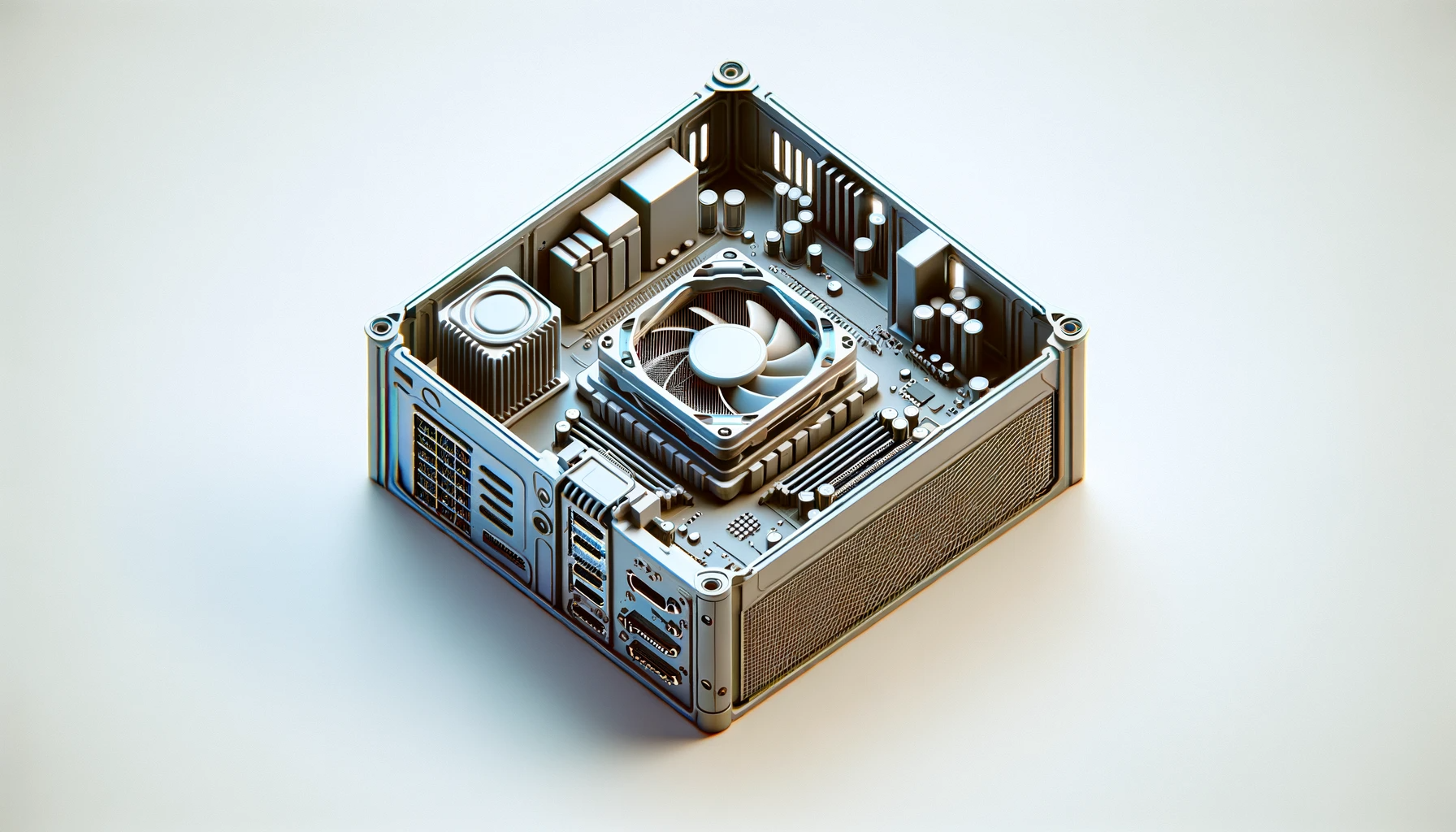
To determine the PCIe version using software tools, you can consider using components diagnosing tools. Several free tools can help you identify the specifics of your motherboard and its supported PCIe version, such as ‘CPU-Z’ and ‘Speccy’. These tools give detailed descriptions of system components and their specifications.
To use these tools, you would simply download and install the program, run it, then navigate to the motherboard or mainboard section. There, you should find detailed information about your motherboard and its supported PCIe version. If you’re unsure, you can also search your motherboard model alongside ‘PCIe version’ for added confirmation.
- Mentioned in the motherboard’s specifications
- Displaying the PCIe 4.0 logo on the packaging
- Offers faster data transfer speeds
- Presence of Gen4 slots on the motherboard
- Provides increased bandwidth for graphics cards
- Supports NVMe Gen4 SSDs
- Delivers improved gaming performance
Where can I find information about my motherboard’s specs?
The details pertaining to your motherboard’s specifications can often be discovered within the motherboard manual. This comprehensive guide, typically supplied by the manufacturer, like Asus or Gigabyte, is fundamental in gathering information about your motherboard’s specs. However, if for some reason, you do not have access to this manual, there’s always a Plan B.
Several system information utilities, such as CPU-Z, are available as free software which can help identify your motherboard’s specification. These utilities provide detailed information on aspects such as the model, manufacturer, chipset, and other vital elements of your motherboard. Additionally, BIOS the motherboard’s built-in software, also allows for motherboard spec identification but may require a more advanced level of understanding.
Is PCIe 4.0 backwards compatible with older motherboards?
The answer in a nutshell is yes. PCIe 4.0, also known as PCI Express 4.0, maintains a level of backward compatibility with earlier iterations of motherboards that utilized PCIe 3.0 and 2.0. The ability to determine if your motherboard supports PCIe 4.0 is emphasized by manufacturers like MSI or ASRock in their product’s specification sheet. However, while compatibility exists, it’s crucial to comprehend the limitations this compatibility may have.
You should be aware that while PCIe 4.0 is backward compatible, it will only operate at the highest speed that the motherboard can support. For instance, if your motherboard only supports up to PCIe 3.0, then a PCIe 4.0 device will also function at PCIe 3.0 speeds when connected to that motherboard. Essentially, it is the motherboard, not the device, which dictates the operational speed of the PCI slot.
How does PCIe 4.0 differ from its predecessor, PCIe 3.0?
PCIe 4.0 offers significant advancements over its predecessor, PCIe 3.0. The most lauded improvement can be seen in bandwidth, where PCIe 4.0 doubles the bandwidth proffered by PCIe 3.0. This increased bandwidth is vital in situations demanding high data transfer rates, like gaming or video editing sessions. The bolstered bandwidth is just one way that PCIe 4.0 differs from PCIe 3.0.
Another way that PCIe 4.0 stands out from PCIe 3.0 is through fundamental design improvements. These improvements enable better signal integrity and longer reach, allowing for more flexibility in motherboard design. However, it is worth mentioning that the motherboard support for PCIe 4.0 must be ascertained, in order to take full advantage of these upgrades. With the right support, PCIe 4.0 is a significant enhancement over PCIe 3.0 in terms of performance and flexibility.
- Not listed in the motherboard’s specifications
- Absence of the PCIe 4.0 logo on the packaging
- Does not mention faster data transfer speeds
- Missing Gen4 slots on the motherboard
- Limited bandwidth capabilities for graphics cards
- No support for NVMe Gen4 SSDs
- May not provide optimal gaming performance
Other Related Questions
- How does the motherboard BIOS work, and how do I update it?
- How do I know if a motherboard supports dual-channel memory?
- What is the difference between ATX and microATX motherboards?
- What is the role of the chipset on a motherboard?
- What is the importance of CPU cache memory?